
Minecraft Chunky: World Pregeneration Guide
Minecraft Chunky pregeneration prepares terrain before your group explores it. The useful skill is not starting the biggest possible job: it is choosing a sensible area, reserving storage and keeping control of the workload without putting an existing world at risk.
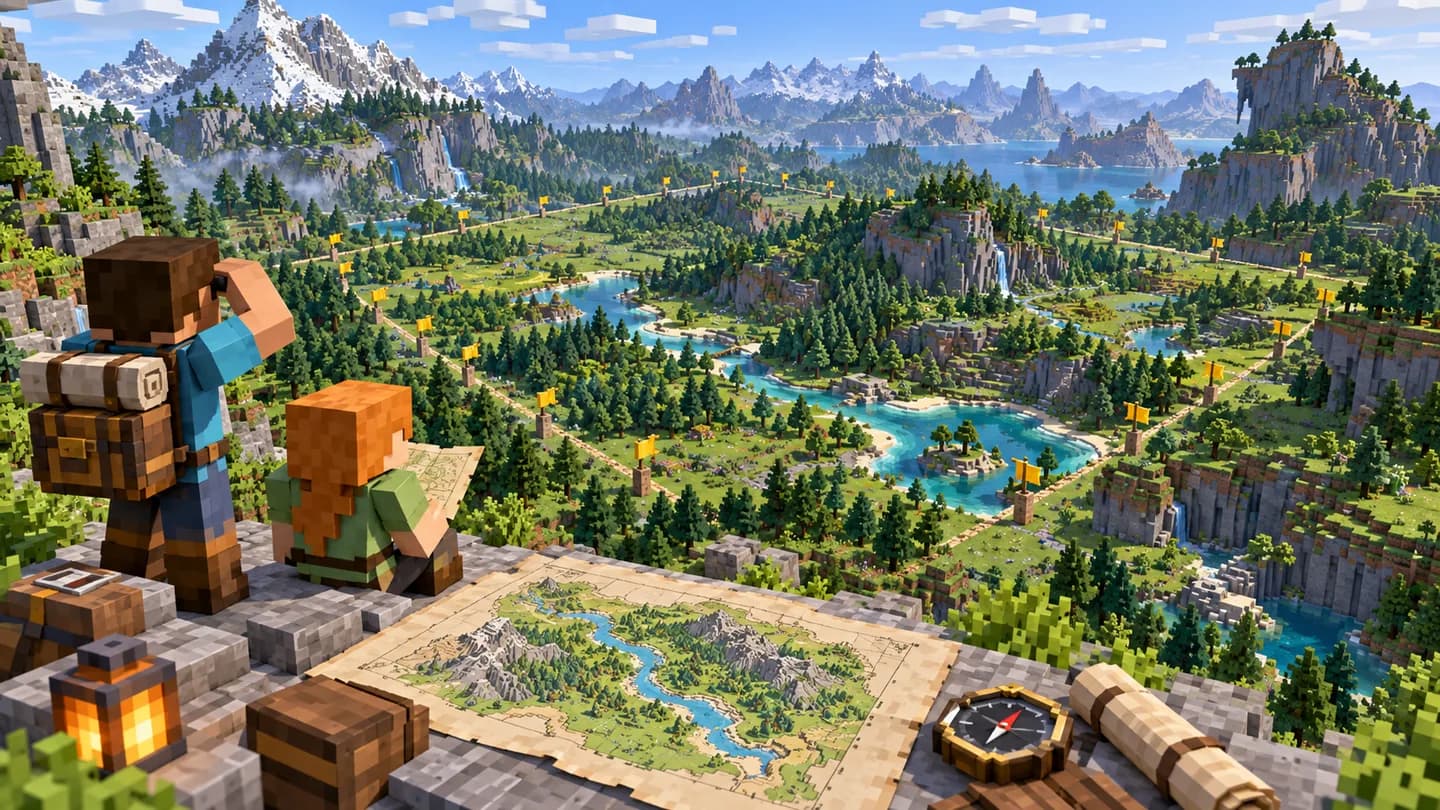
When Minecraft Chunky pregeneration is useful
Consider pregeneration when exploring new terrain is the workload you want to move into a maintenance window. It does not promise higher client FPS, better internet ping or a cure for overloaded machines in an established base. Diagnose those separately with the server lag guide.
The Chunky maintainer's FAQ explains that terrain generation is delegated to the server, including custom world generation. Your installed pack therefore determines the terrain and much of the cost. There is no reliable universal completion time, especially across modded worlds.
Prepare the pack and recovery copy
Finalize the pack release, seed, world-generation configuration and datapacks first. Test a disposable world with that combination before generating a large permanent area. Otherwise you may spend your storage budget preparing terrain you did not intend to keep.
Choose the Chunky build for the exact Minecraft version and platform. Its installation instructions distinguish plugin and mod downloads, place Bukkit builds in plugins and loader builds in mods, and require Fabric API for Fabric. Do not install a Bukkit plugin into a Forge pack or replace the pack's loader merely to follow a tutorial.
Stop the server normally and preserve a complete recovery copy before installing or starting work. Include pack-specific state, not only terrain; use the backup and restore checklist. Arrange a quiet window, confirm administrative permission and check any hosting limits on intensive tasks.
Budget radius and disk space
Chunky radius values are blocks, not chunks. A circle with radius 1,500 blocks has a 3,000-block diameter. For a square selection, that same radius means a side length of approximately 3,000 blocks, not 1,500. Generation operates on chunks, so boundaries and final counts are not exact continuous geometry.
For planning, a circle's area is approximately 3.14 times radius squared; a square's area is approximately four times radius squared. Doubling radius therefore covers roughly four times the area. With comparable terrain and storage per chunk, expect disk demand to grow roughly quadratically too, not merely double.
Example: a group plans a compact expedition around a central lodge. A 1,500-block circle covers about 7.1 million horizontal blocks; a 3,000-block circle covers about 28.3 million. This is area arithmetic, not a measured disk-size prediction. Mods, existing chunks, compression and dimensions change actual storage.
Our recommendation is to measure a small representative pilot on a copy. Compare saved world size before and after a clean stop, then budget conservatively for the proposed area, backups and temporary files. Set a free-space reserve and a pause threshold before starting. Do not use every available gigabyte simply because the estimated terrain fits.
Select and start one bounded task
These are in-game commands for an authorized administrator; omit the leading slash in the server console. The example assumes the target world is actually named world. Substitute its real name or dimension identifier as offered by your installed build's command completion.
/chunky world world
/chunky shape circle
/chunky center 0 0
/chunky radius 1500
/chunky selection
Check the displayed world, center, shape and radius against your plan. Here, 0 0 means X and Z coordinates, not automatically the lodge or spawn. Change the center to your intended location before continuing. Verify existing world-border restrictions too; a Chunky selection is not a player containment rule.
Only after checking that selection, begin:
/chunky startThe official command reference documents these selection and task controls. Follow the console's progress messages, or request an in-game report with /chunky progress. Keep the first job to one dimension so its storage and performance effects are easier to attribute.
Do not assume that preparing the Overworld also prepares the Nether, End or a modded dimension. Treat each as a separate capacity decision. Check the pack's dimension rules and identify the actual target before repeating the workflow.
Pause, resume or cancel deliberately
For the example world, these are separate actions, not a sequence to paste together:
/chunky pause worldsaves task progress for later continuation./chunky continue worldresumes a current or saved task./chunky cancel worlddiscards the task; it cannot then be resumed with continue. Already generated chunks remain.
Omitting the world argument applies these controls to all worlds. Use an explicit target when other jobs exist. Prefer pause for a maintenance break; cancel is not an undo button and does not reclaim disk space.
Watch free storage, memory pressure, server responsiveness and error logs alongside progress. Pause when your reserve is reached, players need the server or generation repeatedly errors. Then stop normally if maintenance requires it. After a restart, inspect task status before continuing; do not blindly start another job.
If the wrong area or generator was used, pause and assess the preserved backup. Do not improvise chunk-deletion or trimming commands on a valued world. Rolling back the complete recovery copy is a separate decision that also loses changes made since that copy.
Verify before expanding
After completion, stop cleanly, record actual world size and confirm enough room remains for backups. Restart and inspect representative terrain near the center and selection edge. Test normal group exploration without the generation job running, and compare like-for-like activity rather than expecting a particular FPS increase.
Keep the measured size, selected coordinates and pack version with your notes. Expand only when the group needs more territory and the storage budget supports it. Before choosing Minecraft hosting, confirm the intended pack, Chunky installation permissions and storage allowances. Commands and compatibility facts above follow primary documentation reviewed October 21, 2026; sizing examples and operational checkpoints are our recommendations.